Announcement

Collapse
No announcement yet.

Resolution Issues

Collapse
X
 
  • Filter
  • Time
  • Show
Clear All
new posts

  • Resolution Issues

    Hi everyone! New Optishot owner, working on a garage setup... having issues with resolution. Running the app at 1920x1080 on my laptop (native) at 100% scaling the sim looks fine. When I have it on the TV I can only see part of the screen, like the sim is running at a really low resolution. I've tried changing DPI settings on the app, forcing resolution under settings in the software to 1920x1080, nothing seems to work. It's a 4k TV, so it should handle any resolution thrown at it. When I got to windowed mode the resolution is fine, but I have a banner at the top that cuts of distance and such. So it is something about what resolution the app is running in fullscreen mode - which is set to use desktop configuration. Pic attached when full screen.

    Any ideas? Thanks!
    Attached Files

  • #2
    This happened to me. The only that fixed the issue for me was to uncheck the option "Run in Fullscreen Mode" in the graphics options. It's still not a perfect solution as it cuts off part of the top but it was the only thing that worked for me.

    Comment


    • #3
      Yeah - that works, but it's not ideal - just frustrating. Found another thread where I tried to force the config by changing C:\ Program Data (x86)\Optishot Golf\Optishot2\app.cfg to:

      WinWidth 1920
      WinHeight 1080
      AspectWidth 16
      AspectHeight 9

      to match my laptop display configuration and it still forces it back to a resolution to large.

      Ugh...

      Comment


      • #4
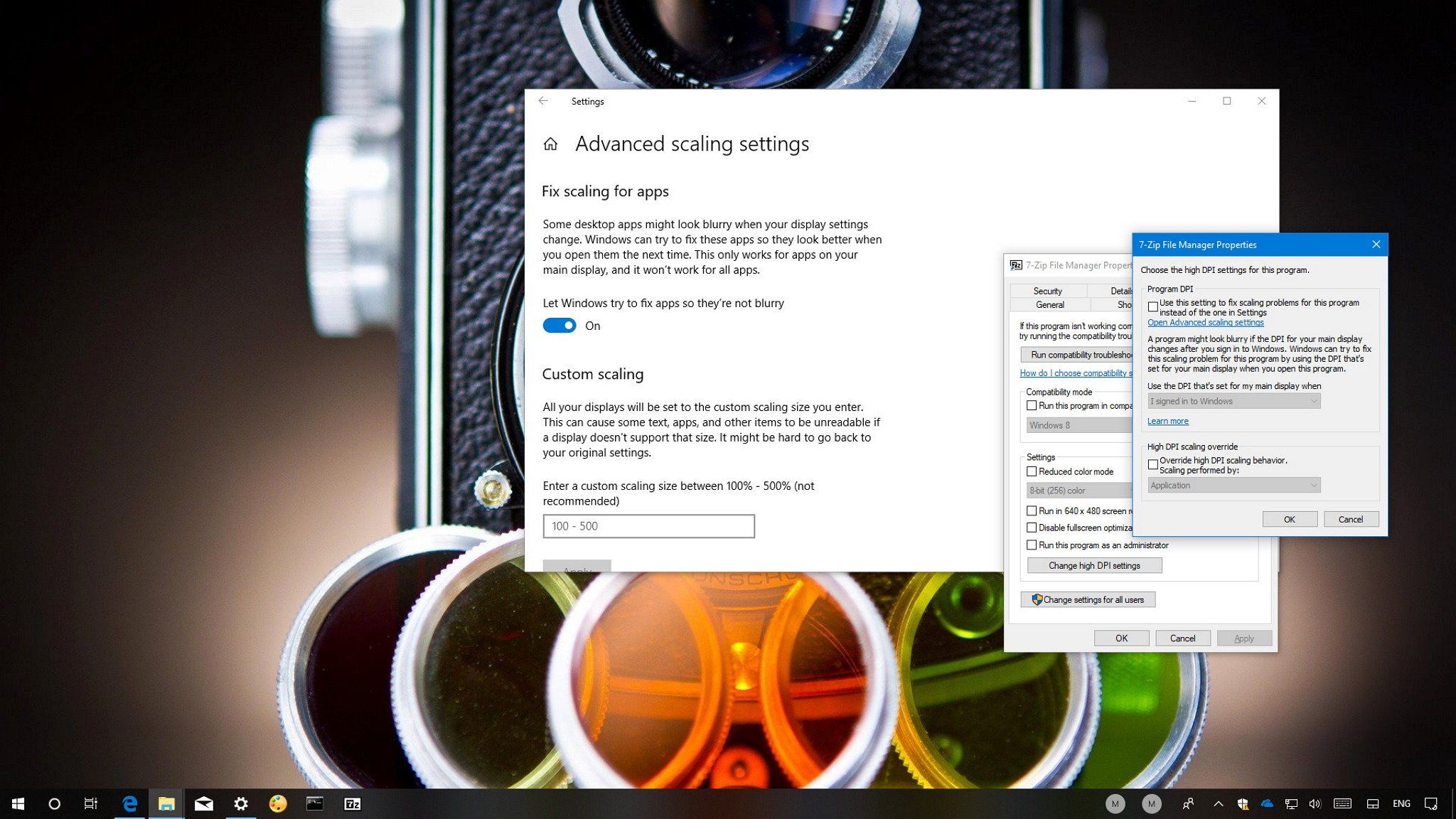
        Solved! Followed instructions for forcing legacy apps on Windows 10 to keep resolution.

        If you are having the issue... Go to C:\ Program Data (x86)\Optishot Golf\Optishot2\ (whatever your folder is) and right click the application. Go to the compatibility tab.

        - Click "Change high DPI settings"
        - Check the "Use this setting to fix scaling problems for this program instead of the one in Settings" box
        - Set use the display DPI settings when you sign in to Windows in the drop down
        - Check the “Override high DPI scaling behavior” option
        - Set Application in the drop down box

        Restart the app... that worked for me. Don't know if you need the app.cfg changes to your resolution above too, but I have that as well.

        You can fix blurry text and stretched elements on a per-app basis using these settings on the Windows 10 April 2018 Update.

        Comment


        • JayJo13
          JayJo13 commented
          Editing a comment
          Awesome! Thanks, I'll try this. Fingers crossed!

        • JayJo13
          JayJo13 commented
          Editing a comment
          Thank you so much for posting this! I spent hours trying to fix this and searched all over the place and the only thing I could find was Optishot's user guide. This worked perfectly! I had given up and just assumed it was never going to work unless I upgraded my laptop. Cheers!
      Working...
      X